Help centre
The TrendIndicator user manual—on the chart and on the web.
Search the current manual, identify every on-chart control, and work through manual trading, pending orders, one-shot Auto Trade and automatic break-even.
Find an answer
Search the user manual
01 · Begin here
Use the interface as a deliberate workspace.
Install, attach and review the chart before using any trading control.
02 · Trend context
Multi-timeframe strength is context—not a probability.
Read the M30, H1, H4, D1 and W1 context, including Moderate Up (3/5), Strong Trend and Wait states.
03 · Verdict workflow
S/R Verdict and the deliberately armed Auto Trade.
Understand the visible S/R context and the separately armed one-shot Auto Trade workflow.
04 · Manual market orders
Set the parameters before BUY or SELL.
Set Manual Lot, select PIPS or account currency, set optional SL/TP, then place a manual market order.
05 · Immediate protection
MOVE SL TO ENTRY
Use the visible manual protection button to move an eligible EA trade stop to entry.
06 · Automatic break-even
Protect at entry, then partially close.
Set an automatic break-even trigger in PIPS or account currency and choose the 1–99% partial close amount.
07 · Pending orders
Prepare first. Submit deliberately.
Prepare Entry, SL and TP, choose Buy Limit, Buy Stop, Sell Limit or Sell Stop, and review recommendations.
08 · Workspace context
Chart zones, news and dashboard.
Use visible support/resistance zones, economic-event context and the dashboard as review aids.
09 · Troubleshooting
Troubleshoot with useful evidence.
Resolve missing controls, order rejections and news availability, and prepare useful support information.
01 · Begin here
Use the interface as a deliberate workspace.
Install only the compiled EA supplied with your license. Attach it to the intended chart, confirm the symbol and account currency, and ensure MT4 trading permissions are configured for your broker.
Before pressing a trade control, confirm the chart symbol, Manual Lot, SL/TP unit and values, spread, broker stop distance and maximum risk. Test every workflow on a demo account first.
Auto Trade and Auto BE are different: Auto Trade begins OFF after attach/restart and requires deliberate arming. Auto BE begins ON by default in the current release, but can be switched off directly on the panel.
02 · Trend context
Multi-timeframe strength is context—not a probability.
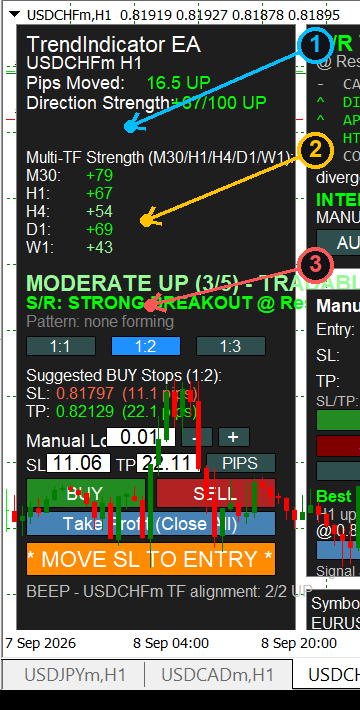
The M30, H1, H4, D1 and W1 rows show separate signed directional strength readings. A positive figure signals upward directional context; a negative figure signals downward context. The number is an evidence/strength display, not a percentage chance of profit.
MODERATE UP (3/5) – TRADABLE means exactly three of five monitored timeframes are aligned upward and all five have supplied a current reading. MODERATE DOWN (3/5) is the inverse. It is context for review, not an instruction to buy or sell.
STRONG TREND UP/DOWN (4/5 or 5/5) means four or five timeframes are aligned. WEAK / MIXED – WAIT means the panel is not showing a sufficiently aligned multi-timeframe condition.
03 · Verdict workflow
S/R Verdict and the deliberately armed Auto Trade.
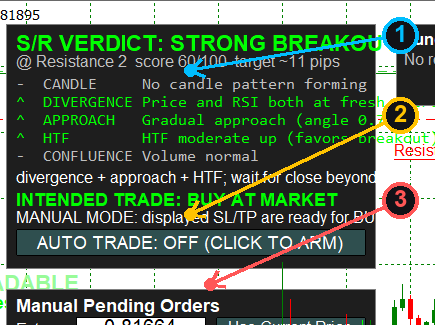
The S/R Verdict summarises visible context close to a relevant support/resistance area. Its headline and Intended Trade text are context; neither places an order on its own.
Auto Trade is one-shot by design. It begins OFF after attach or restart. Once armed, a verdict that is already present is ignored. Only a new strong verdict can attempt one market order using the visible Manual Lot and displayed Manual SL/TP values. It then disarms whether the broker accepts or rejects the attempt.
Check the intended side, Manual Lot, stop, target, spread and broker conditions before arming. Never use it as continuous unattended trading.
04 · Manual market orders
Set the parameters before BUY or SELL.
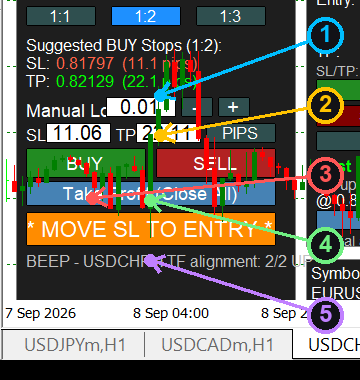
- Set Manual Lot using the editable field or − / + buttons.
- Enter Manual SL and Manual TP. Use the unit button to select PIPS or your MT4 account currency, such as USD or GHS. A value of 0 deliberately leaves that stop unset.
- Review the market and click BUY or SELL for a manual market order. Broker distance rules still apply.
- Monitor the position and manage it with the appropriate protection control.
05 · Immediate protection
MOVE SL TO ENTRY
The orange MOVE SL TO ENTRY button is the direct, manual trade-management action. Use it when you choose to move the stop loss of an eligible open EA market order to its entry price.
It does not manage another EA’s orders or unrelated manual trades, and broker stop/freeze rules still apply. Check the MT4 Trade tab and Experts/Journal output after using any management control.
06 · Automatic break-even
Protect at entry, then partially close.
Auto BE is independent from Auto Trade. It manages only eligible live BUY/SELL orders on the current chart symbol that belong to this EA.
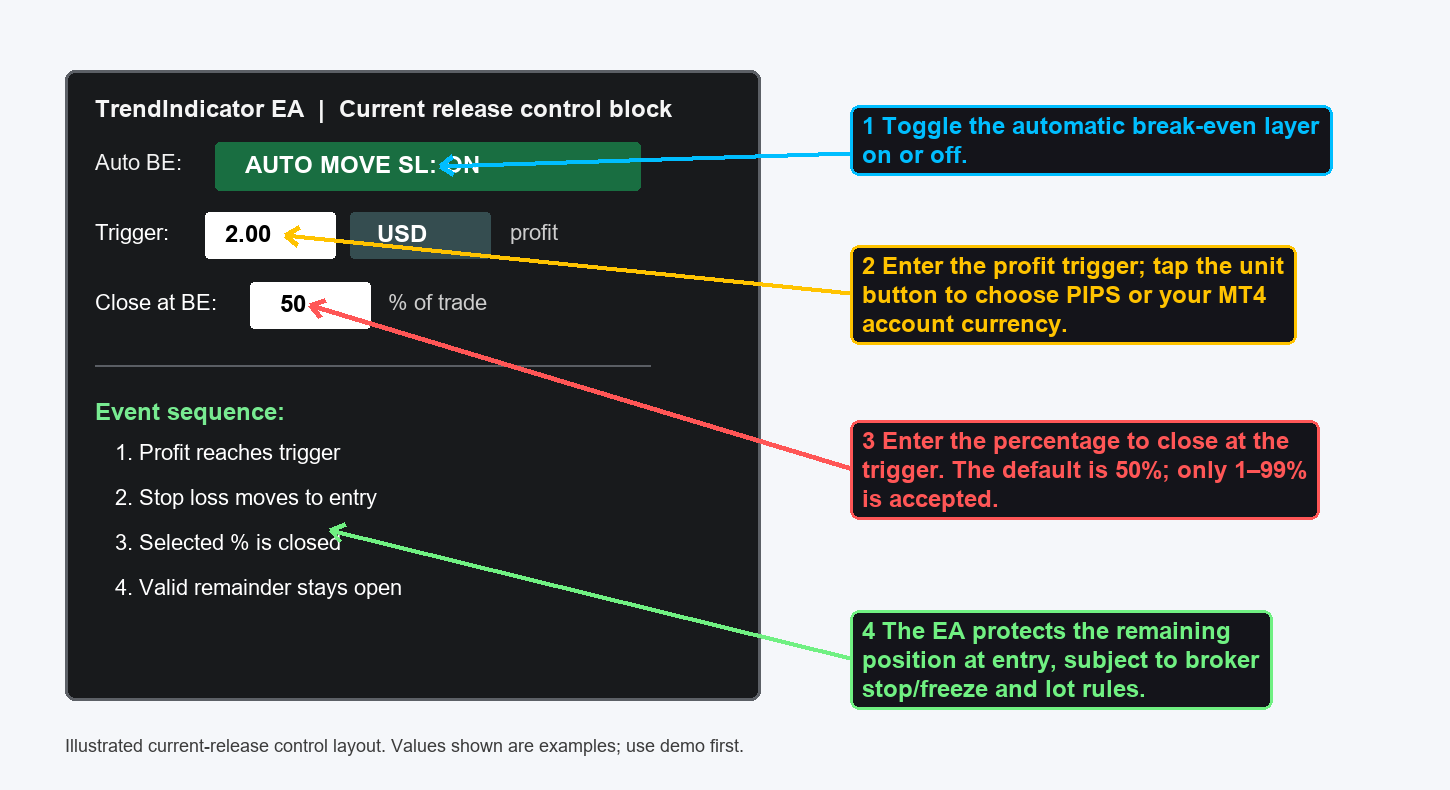
Switch AUTO MOVE SL ON/OFF, enter a Trigger, and select PIPS or your MT4 account currency. Current defaults are 2.00 for USD (and other currencies until you choose another value) and 5.00 for GHS. Pips mode defaults to 10 pips.
When the profit trigger is reached, the EA attempts to move the stop to entry, then closes the selected Close at BE percentage. The default is 50%; accepted values are 1–99%. If broker lot-step/minimum-lot rules cannot retain a valid remainder, it skips the partial action rather than silently closing the entire position.
07 · Pending orders
Prepare first. Submit deliberately.
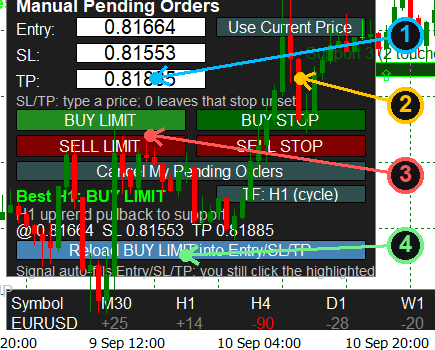
Enter the planned Entry, SL and TP as prices. Use Current Price only fills Entry for convenience; it does not submit an order. A blank or 0 SL/TP intentionally leaves that stop unset.
Choose the exact order type yourself: BUY LIMIT, BUY STOP, SELL LIMIT or SELL STOP. The EA validates relationship and broker stop-level conditions, but you remain responsible for your planned order.
The timeframe recommendation can populate fields for review. Reload copies its values to the editable fields; it never places an order. Cancel My Pending Orders only targets qualifying EA pending orders for the current chart symbol.
08 · Workspace context
Chart zones, news and dashboard.
Chart zones: Support/resistance drawings are visible context. They do not execute an order or guarantee that a price level will hold or break.
News: The optional news panel displays upcoming events when its MT4 WebRequest/network configuration is available. It is contextual information, not a trade recommendation.
Dashboard: The dashboard is a compact multi-symbol view. Always verify the exact active symbol, lot, direction and risk settings before taking action.
09 · Troubleshooting
Troubleshoot with useful evidence.
If a control is missing, confirm that the newest compiled EA is installed, refresh/re-attach it, and check chart size/display scaling. If working from source, compile the current file in MetaEditor first.
For a rejected order, record the MT4/broker error, symbol, current price, spread, intended order type, lot size and stop-distance context. For unavailable news, check the documented MT4 WebRequest setting and connectivity.
Send a chart screenshot and relevant Experts/Journal lines to tranoswebtech@gmail.com. Never send passwords, payment details or license secrets.